Travel storytelling tools with map animation?
Six tools for turning a travel route into an animated map video. Covers free options, social formats, and GPS import - pick what fits your trip.
mult.dev Team
|March 5, 2026
|9 min read
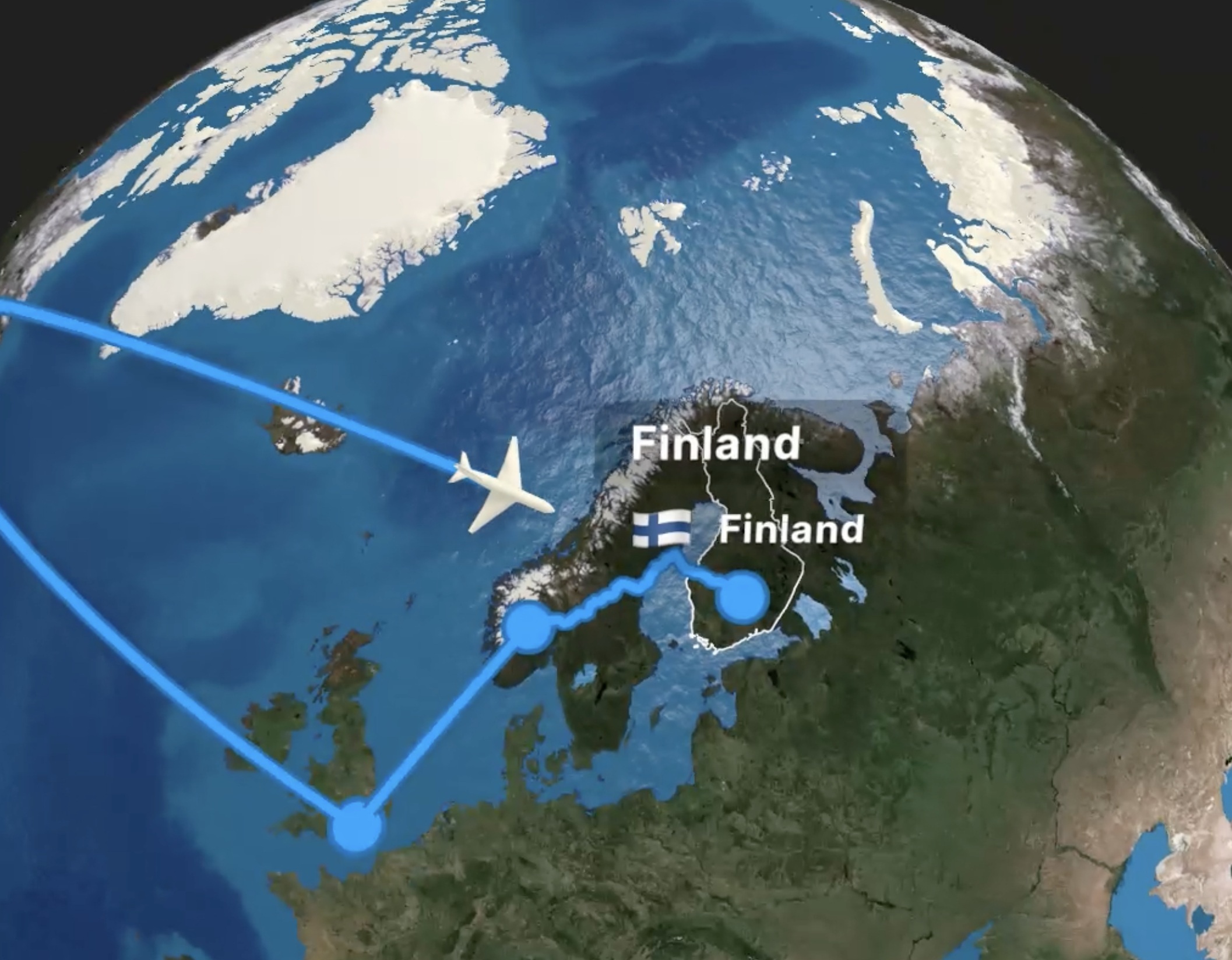
You're back from a two-week trip. The photos are on your phone, the route is still in Google Maps, and you know the story is good — but when you try to share it, something falls flat. A screenshot of the map looks like a receipt. The video clips without context make no sense to anyone who wasn't there. People don't just want to see where you went. They want to watch you get there.
These tools fix that.
What Makes a Good Travel Storytelling Tool
Most map apps give you a pin and call it done. A good travel storytelling tool goes further — it puts the viewer on the road with you. When you're choosing, these five things make the difference:
- The route animates — the line draws itself across the map as the video plays, frame by frame.
- Real track support — GPX from Strava or Komoot, a Google Maps link, or manual point-to-point entry.
- Music and visual customization — map style, transport icon, your own photos at key stops.
- Export formats for social — vertical 9:16 ready for Reels and TikTok, no manual cropping after the fact.
- Simple enough to finish — open the app, enter the route, get a video; anything more complex and people abandon it.
Every tool below is measured against exactly these five points.
The Tools
Six tools, six different approaches — GPS flyovers, collaborative maps, drag-and-drop graphics, and full animation studios. They overlap in places but solve different problems. For ratings and a side-by-side feature breakdown, the travel map animation tools roundup covers all of them in depth.
Mult.dev
Over 20,000 travelers create map videos in Mult.dev every day. The workflow is straightforward: enter your cities, set how you traveled each leg — plane, car, train, ferry — attach photos to individual stops, and the animated MP4 renders in under a minute. Routes come in via GPX, KML, or a pasted Google Maps link, and the AI assistant inside the app can build a route from plain text if you'd rather type “Barcelona to Valencia by train” than click through a form. Vertical export for Reels works out of the box. Of the six tools here, it's the one where the gap between opening the app and having a finished video is smallest.
Relive
Relive pulls your GPS activity from connected services (including Strava and Garmin) and turns it into a 3D flyover video of your route. The camera moves along your elevation profile, so a mountain hike looks genuinely different from a flat coastal ride. Manual route entry isn't an option, and waypoint photos aren't supported, so it only works if you already tracked the activity. Free tier available with limited video length.
Google My Maps
A shareable interactive map that anyone can open in a browser, zoom into, and explore at their own pace. You can build color-coded layers, add custom icons, and write descriptions for each stop — useful for destination breakdowns or multi-day trip overviews embedded in a blog post. Video export and audio don't exist here. It works well alongside a written article, less so as a standalone piece of content. Free.
Canva
Good for static travel graphics — illustrated maps, animated GIFs, slides with a route drawn on top of a map background. You place the map as an image, draw the path manually using shapes, then animate the layers for a basic reveal. GPS import isn't there, so the route won't reflect actual roads or elevation. The free plan covers most of what a travel blogger needs, and the output fits naturally into Pinterest, blog headers, and presentation decks.
Animaker
A full animation studio that happens to include map scenes. You pick a world or regional map, place waypoints manually, then layer in animated characters, callouts, lower-thirds, and voiceover — the kind of polished intro you'd see on a YouTube travel channel. It takes longer than any other tool here to produce a finished clip, and free exports come with a watermark. Worth the time if you want complete visual control over every frame.
Felt
A map editor built for collaboration — several people can add stops, draw routes, and annotate the same map simultaneously. The result is an interactive embed, not a video. For a solo traveler it's overkill, but for group trips, travel journalism, or editorial projects where multiple contributors build one shared map, it's a practical choice. Felt supports embedding via an iframe snippet. Free for basic use.
Tool Snapshot
| Tool | Final output | Social | Blog embed | Route animation | Music | Free |
|---|---|---|---|---|---|---|
| Mult.dev | Animated MP4 travel video | ✅ | ✅ | ✅ Automatic | ✅ | ✅ |
| Relive | 3D activity recap video | ✅ | ❌ | ✅ From GPS | ❌ | ✅ |
| Google My Maps | Interactive map | ❌ | ✅ | ❌ | ❌ | ✅ |
| Canva | Static image or simple GIF | ✅ | ✅ | ❌ Manual | ✅ | ✅ |
| Animaker | Custom animated video | ✅ | ✅ | ⚠️ Manual | ✅ | ⚠️ |
| Felt | Interactive collaborative map | ❌ | ✅ | ❌ | ❌ | ✅ |
How to Create a Travel Story with Mult.dev
For a full walkthrough with screenshots, see the first video walkthrough.
- Open Mult.dev — in a browser on desktop or mobile, or launch the iOS/Android app.
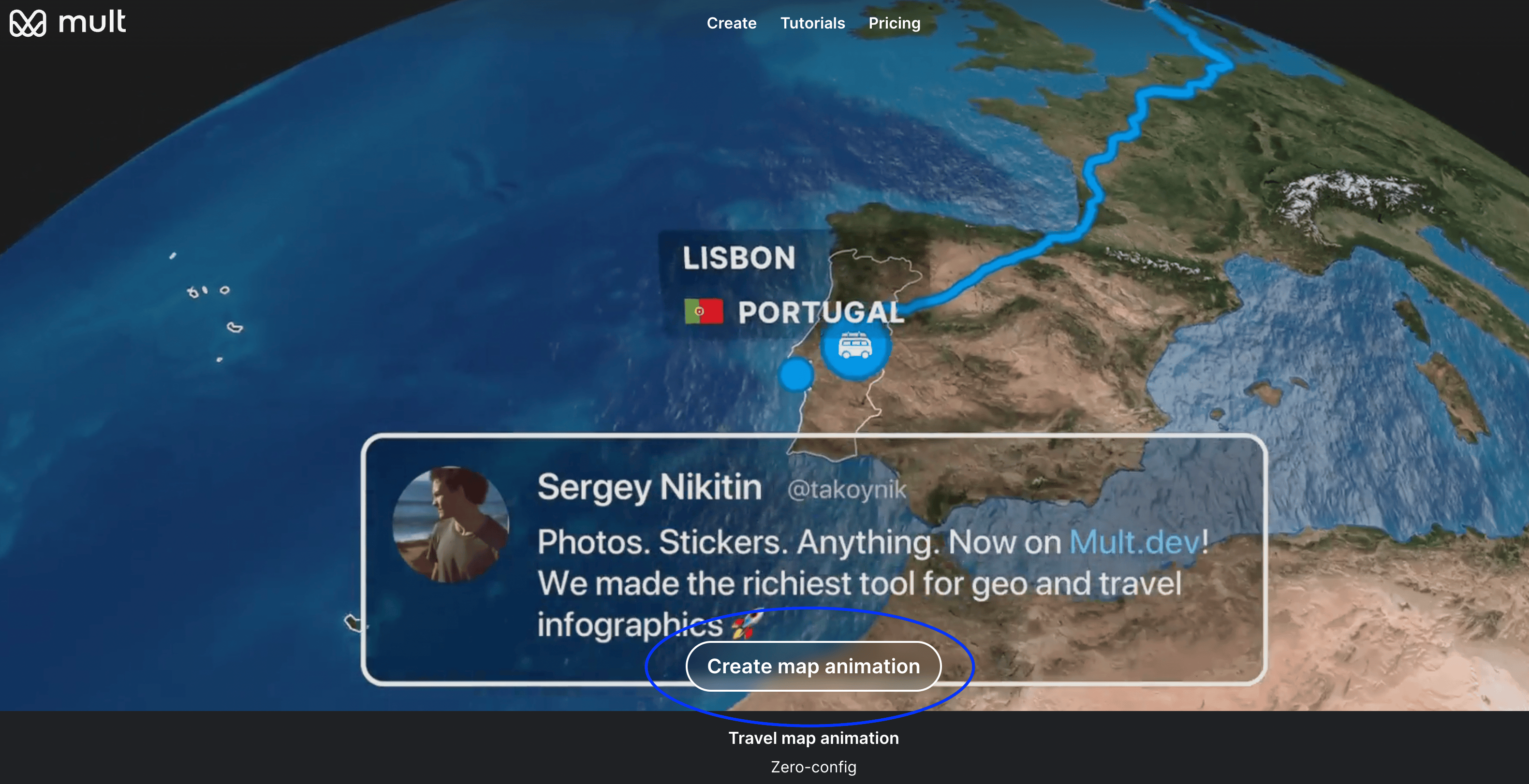
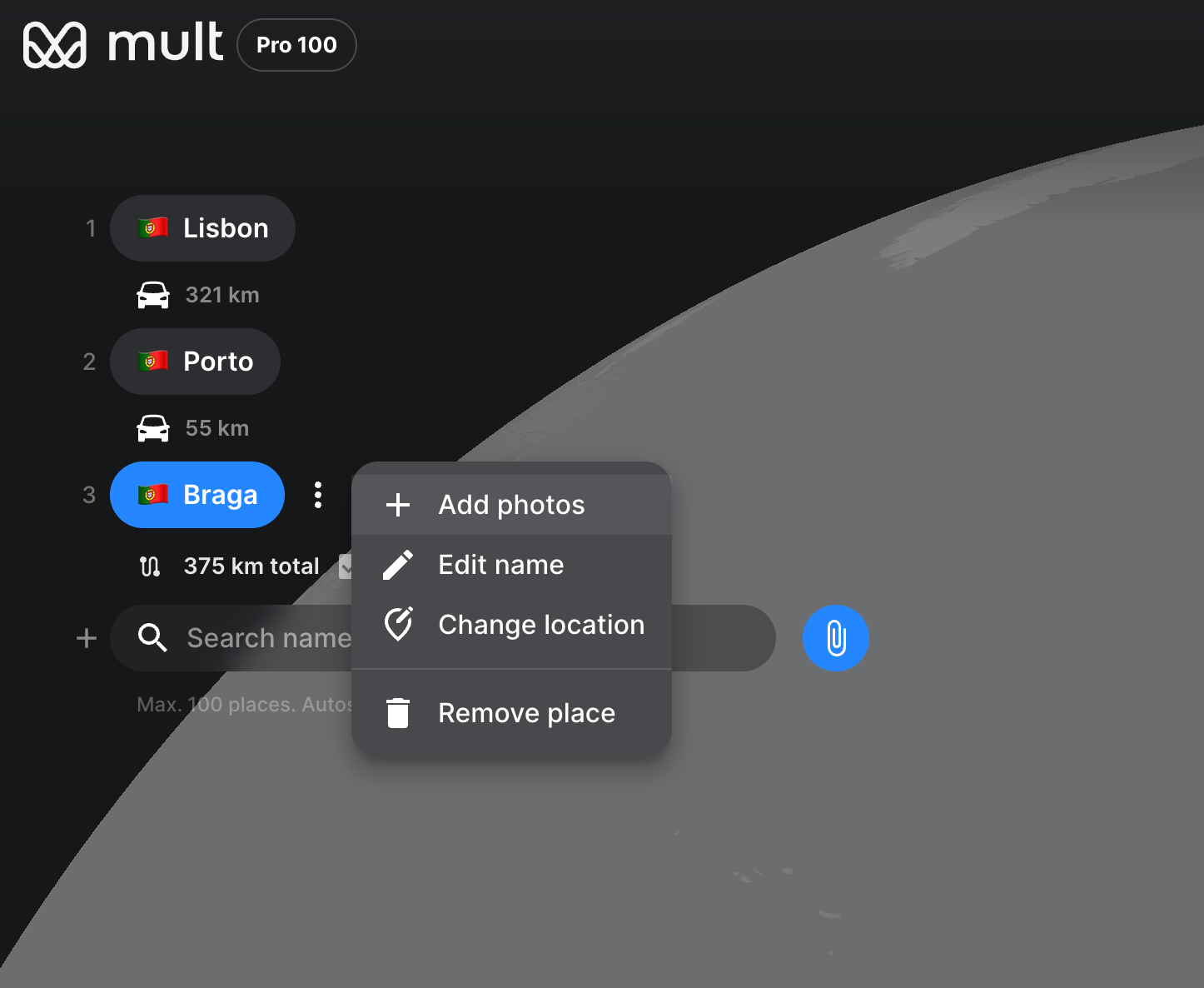
- Load your route — paste a Google Maps link, import a GPX or KML file, or enter cities manually. The built-in AI assistant can also build a route from plain text: “Lisbon → Porto → Braga by car”.
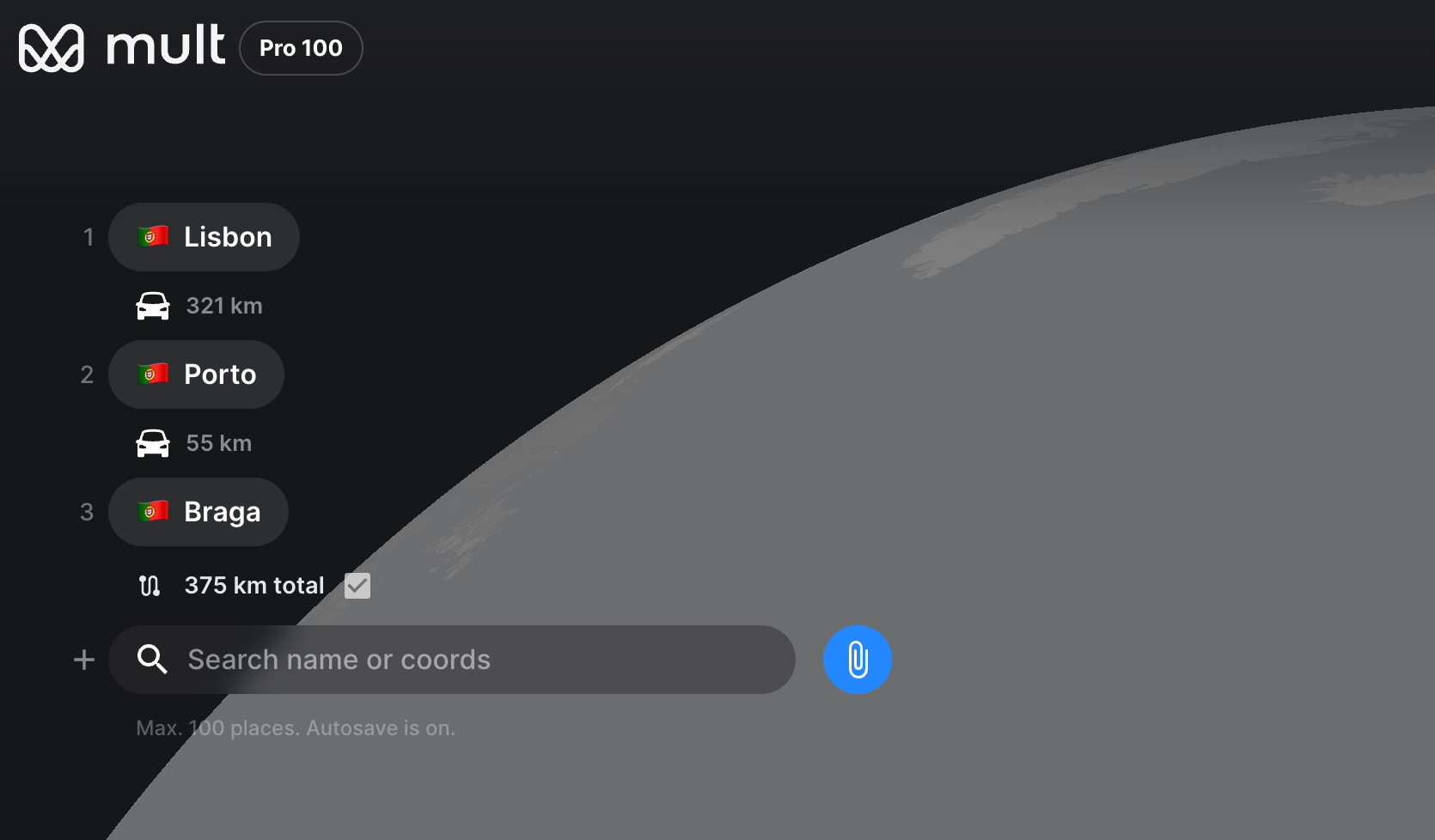
- Set transport type for each leg — plane, car, train, bus, boat, or walking; the animation style changes accordingly.
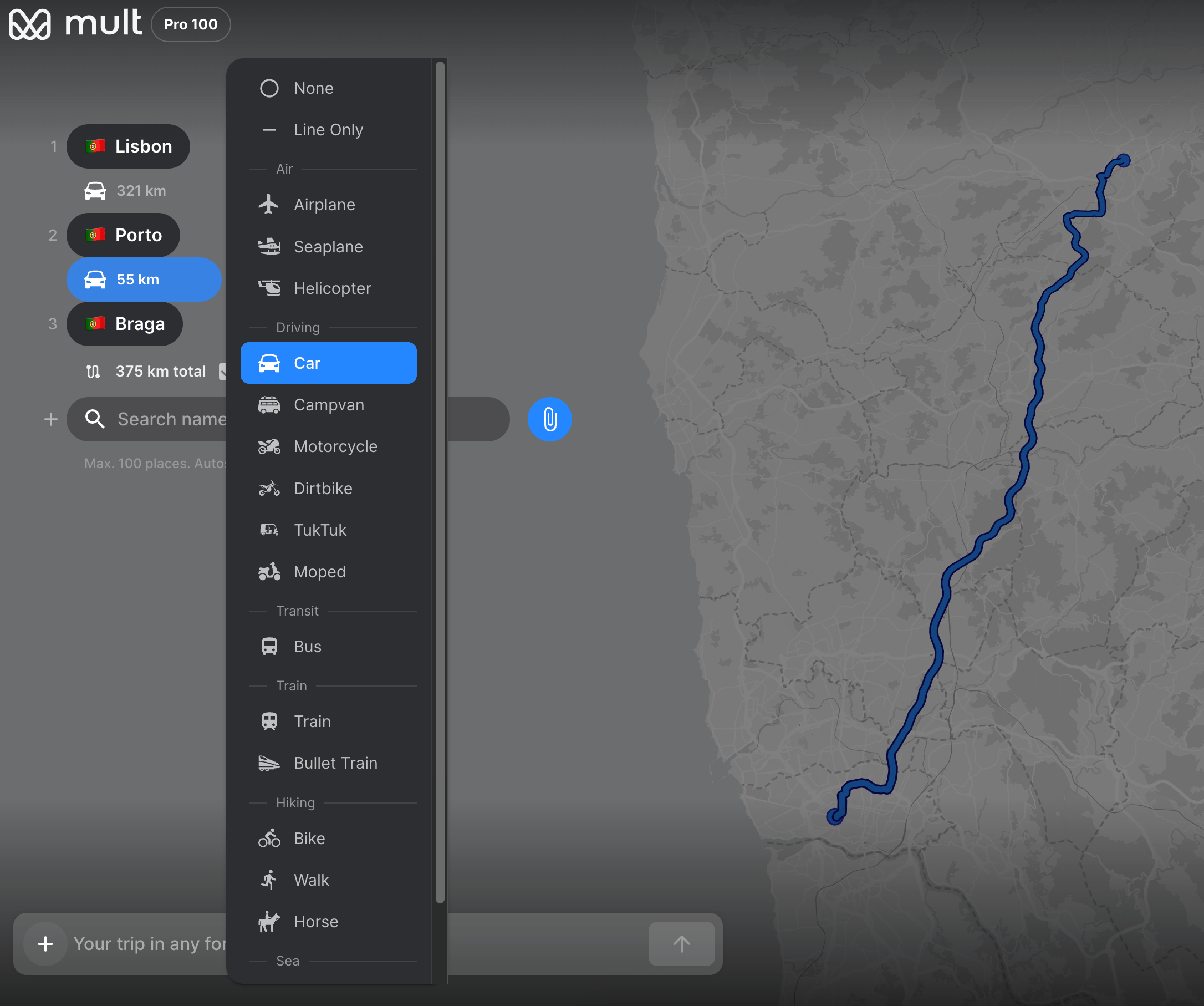
- Attach photos to stops — drop an image at each waypoint and it appears in the video as the route reaches that city.
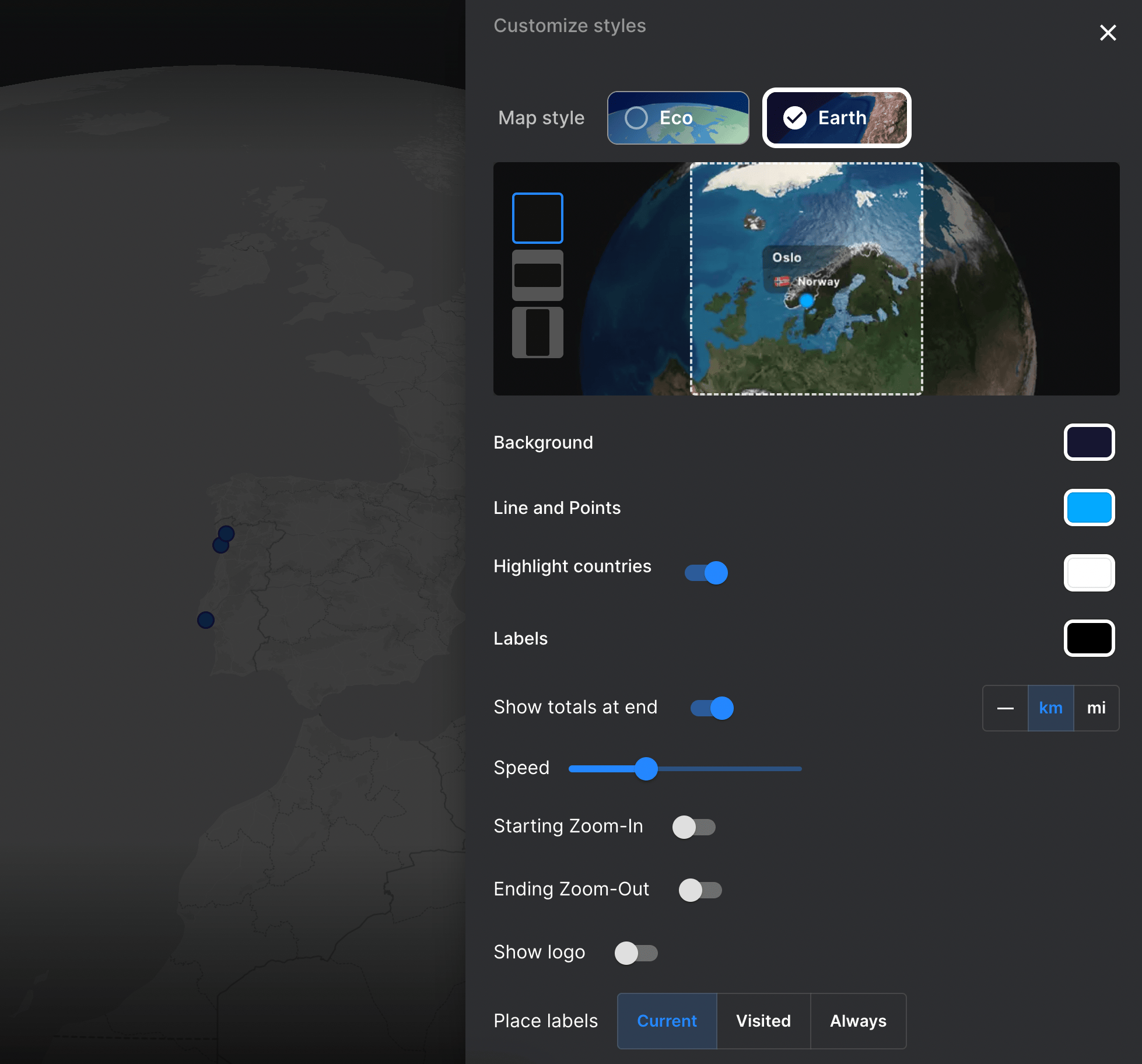
- Choose a map style — options range from minimal light to dark satellite; pick the one that fits the mood of the trip. More visual options are covered in the customization article.
- Select your export format and add music — 9:16 vertical for Instagram Reels and TikTok, 16:9 horizontal for YouTube, or 1:1 square for blog embeds. Pick a background track from the library or upload your own before exporting.
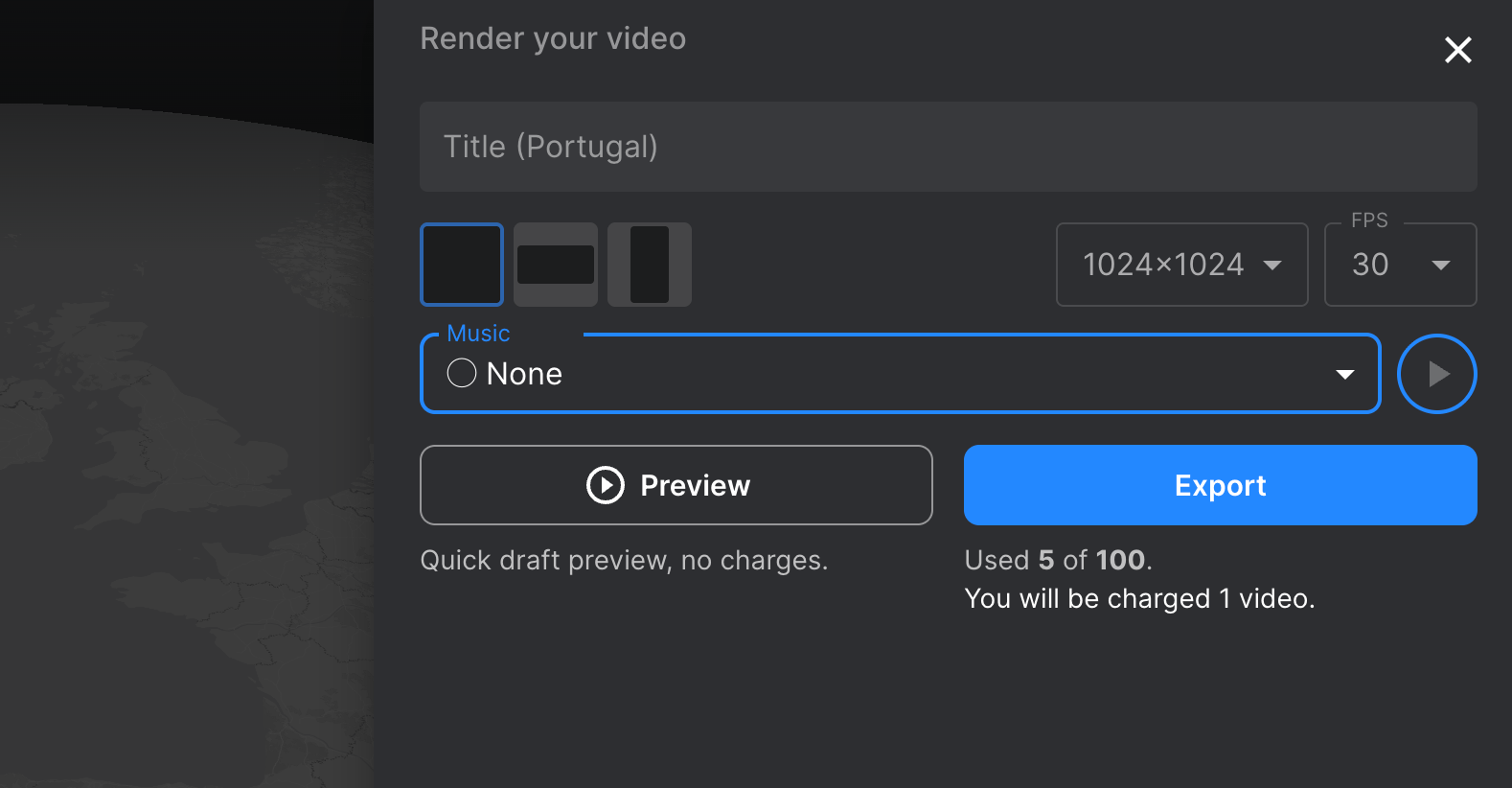
- Export — full resolution, ready to post directly.
Common Mistakes When Creating a Travel Map Video
Too many stops, too little time. A 90-second video with 14 cities becomes a blur. Six to eight waypoints for a clip under 60 seconds keeps the pacing tight enough to hold attention through the end.
Wrong aspect ratio for the platform. Exporting a 16:9 video for Instagram Reels crops the map into an unreadable strip. Pick the format before you build the route — repositioning the frame afterward wastes time and usually means starting over.
No photos at stops. A route animating across a blank map gives viewers nothing to connect to. Even one photo per major stop makes the video feel like a real trip instead of a screensaver.
Music that overpowers the map. The visuals carry the story here — the track should sit underneath them, not compete. Instrumental beats at 60–70% volume tend to hold watch-time better than anything louder.
Exporting at low resolution to test it first. Low-res looks fine on a phone but breaks down in a blog embed or on a larger screen. Run the full export once and you're done.
What Format Works Best for Each Platform
| Platform | Aspect ratio | FPS | Ideal length |
|---|---|---|---|
| Instagram Reels | 9:16 | 30 | Up to 60 sec |
| TikTok | 9:16 | 30 | Up to 60 sec |
| YouTube | 16:9 | 60 | Any length |
| Blog / Presentation | 1:1 | 30 | Any length |
FAQ
Can I use my phone to create a travel map animation?
Yes, you can create a travel map animation directly from your phone. Tools like Mult.dev are accessible via mobile browsers and offer dedicated iOS and Android applications, allowing you to build and export a complete video entirely on your device. This makes it convenient to share your travel stories on the go, even after your trip.
Do I need video editing skills?
No. Tools like Mult.dev and Relive generate the animation from your route automatically. You add the stops and photos; the video assembles itself.
Can I import a route from Google Maps?
Mult.dev accepts Google Maps links directly — paste the URL and the route loads in. The full process is in the Google Maps import article.
Is there a free travel map animation tool?
Mult.dev, Relive, Google My Maps, Canva, and Felt all have free tiers. Mult.dev's free plan covers basic exports; longer videos and higher resolution require a paid plan.
What's the difference between a travel map video and a travel vlog?
A travel vlog is raw footage — places, people, moments on camera. A travel map video shows the route itself animating across a map. They work well together: the map video as a 30-second opener, the vlog as everything that follows.
What's the fastest way to make a map video of my trip?
Open Mult.dev, paste a Google Maps link or enter your cities, pick the transport type, and hit export. Skip photos and music at first if you want speed. You can add photos and a soundtrack afterward.
Can I use my GPS history to create a travel animation video?
Yes. Mult.dev and Relive both accept GPX files — export your track from Strava, Komoot, Garmin, or any GPS app, then import it. The route follows your actual path.
Updated on March 5, 2026